

Email is still the number one entry point for cyber-attacks, with malware, phishing, and Business Email Compromise (BEC) posing serious risks to organisations of all sizes. For micro and small businesses relying on Microsoft 365, a single malicious email can lead to ransomware infections, data breaches, or financial fraud.
This guide explains why implementing anti-malware email filtering is essential, how it aligns with NCSC best practice, and how it helps meet Cyber Essentials and Cyber Essentials Plus requirements. We’ll walk through practical steps to configure Microsoft 365’s built-in security features so you can protect your inbox, reduce risk, and stay compliant without adding unnecessary complexity.
Why Email Filtering Matters
Email is the most exploited attack vector for malware and phishing campaigns. Threat actors use malicious attachments, links, and spoofed domains to deliver ransomware, steal credentials, and compromise business processes.
The NCSC strongly advises implementing layered email security controls, including anti-malware scanning, domain authentication, and user-focused measures like MFA. These steps reduce the likelihood of successful attacks and limit their impact.
Under Cyber Essentials, organisations must have effective malware protection across all devices. While endpoint antivirus is essential, filtering threats at the email gateway prevents malicious content from ever reaching users. Cyber Essentials Plus goes further by testing that email malware is blocked and anti-malware tools are correctly configured.
For micro and small businesses using Microsoft 365, leveraging built-in security features such as Defender for Office 365 provides a cost-effective way to meet these requirements and align with best practice.
Configuring your email filtering in Microsoft 365
1) Access the Security & Compliance Center:
- Go to https://security.microsoft.com.
- Sign in with Global Admin or Security Admin credentials.
- Enable Preset Security Policies
Available in all Microsoft 365 plans (included by default).
Preset Security Policies apply Microsoft’s recommended security settings in one step, creating a baseline for your other policies. This saves time, reduces complexity, and ensures strong protection without manual configuration.
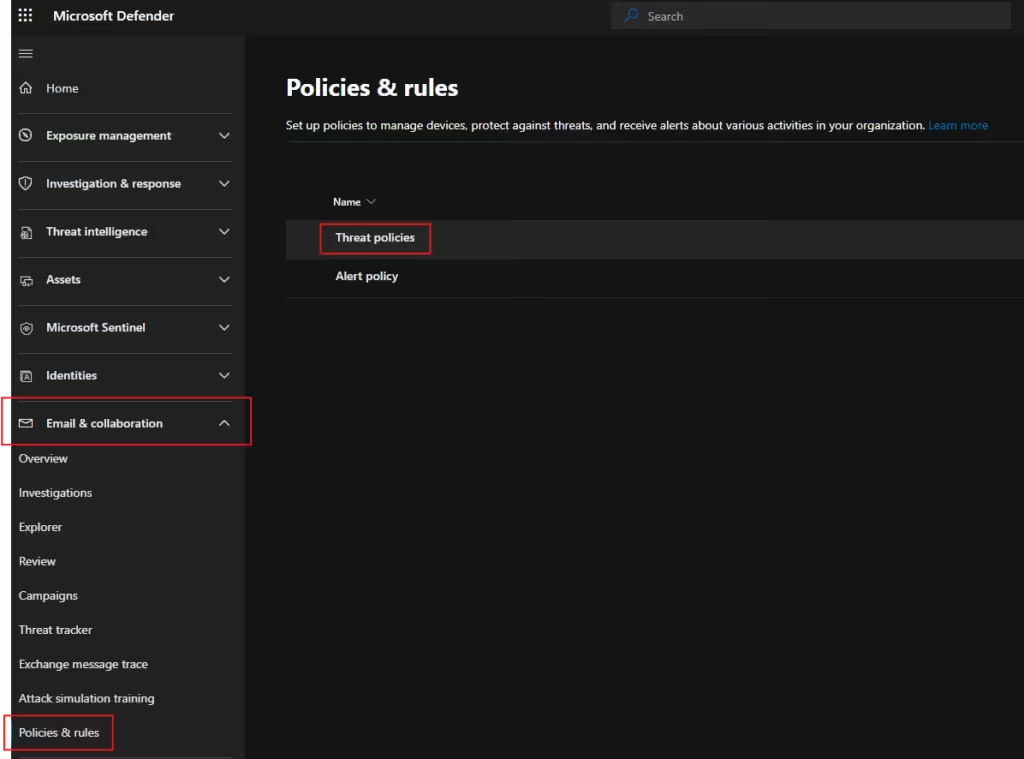
On the Microsoft Defender portal go to → Email & collaboration → Policies & rules → Threat policies → …
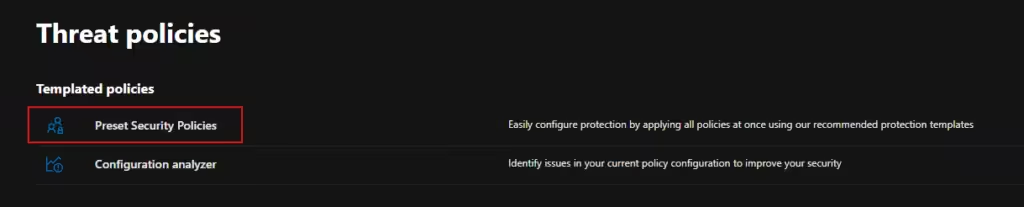
… → Preset Security Policies.
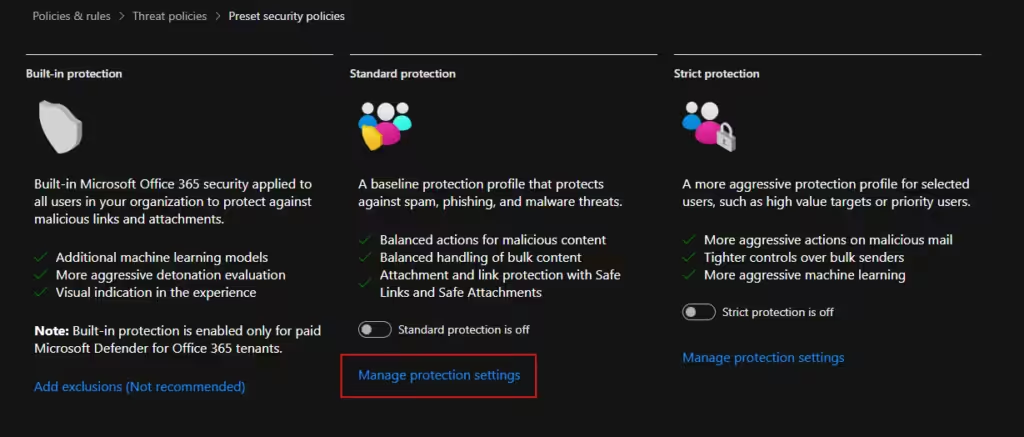
Apply Standard Protection to all users through Manage protection settings → …
… → All recipients.
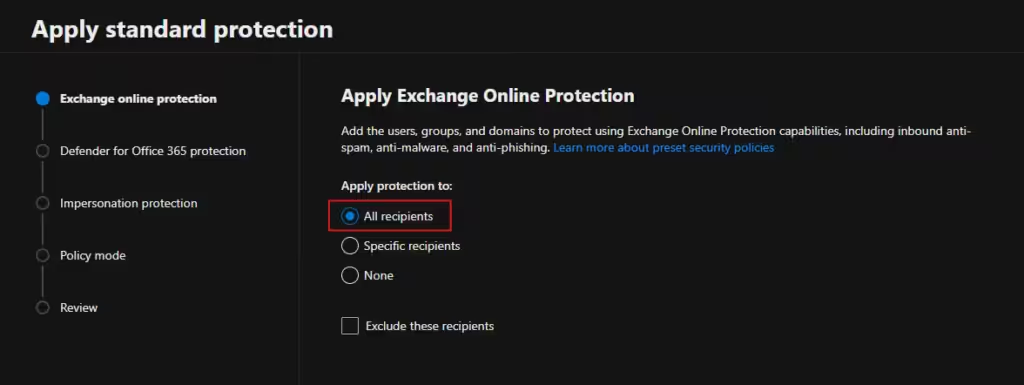
After clicking next, you can also select All recipients for Defender for Office 365 protection.
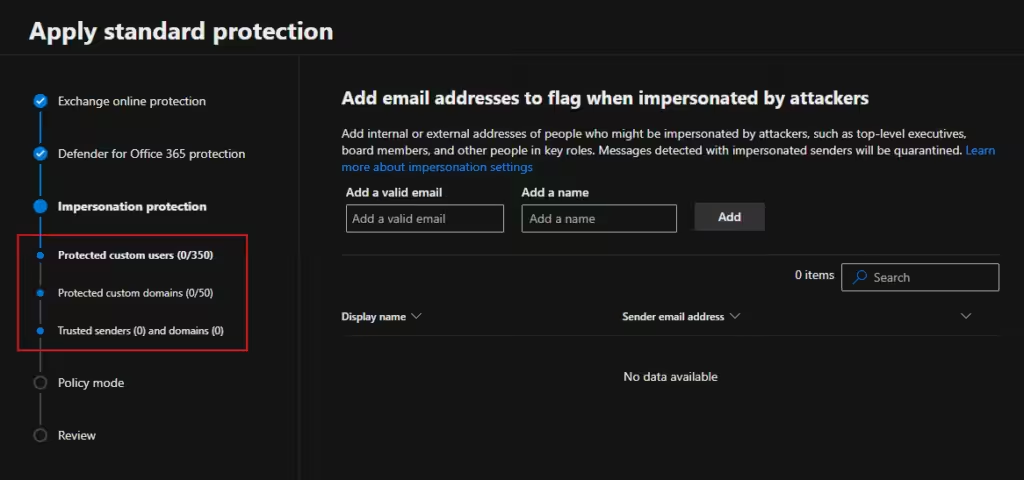
Click Next… from there you can then add email addresses and domains you think might be impersonated by attackers. This will often include top-level executives, board members, and other people in key roles. You can also add trusted email addresses and domains so that they will not be flagged as impersonation.
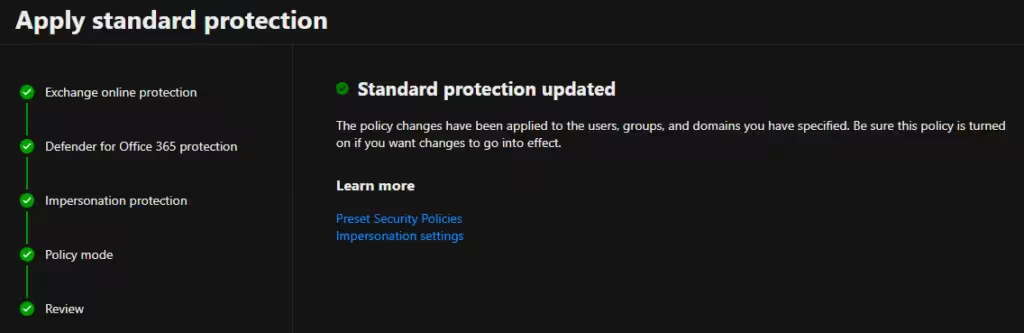
You then have the option to enable the policy when finished. This will activate the policy once you have reviewed and confirmed the settings.
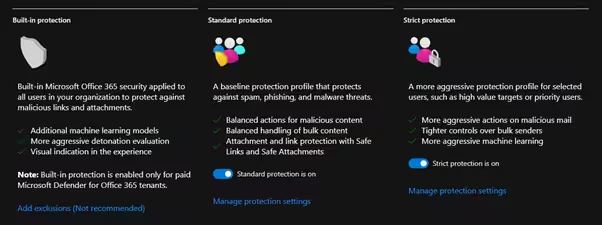
Next you can apply Strict Protection. This follows the same process as the Standard Protection settings, but may only need to be applied to high-risk roles (finance, executives).
These presets include anti-malware, anti-phishing, Safe Links, and Safe Attachments with recommended defaults.
Once you have confirmed both protection configurations, they will be shown as on.
Preset Security Policies provide a strong baseline, but custom policies allow you to fine-tune protection for specific needs, allowing you to configure some additional settings through default policies that cover your whole organisation. Another example, you might want stricter Safe Links for finance teams, block additional file types, or set custom quarantine notifications. Adding targeted policies ensures high-risk roles get enhanced protection without overcomplicating the setup for everyone else. This also allows you to configure some additional settings through added default policies that cover your whole organisation.
2) Configure Anti-Malware Policies
Available in all Microsoft 365 plans (included by default).
While Microsoft 365 includes basic malware scanning by default, custom anti-malware policies let you enforce stricter actions like quarantining threats, blocking risky file types, and alerting admins. This ensures malicious attachments are stopped before reaching users and supports Cyber Essentials requirements for malware protection across all devices.
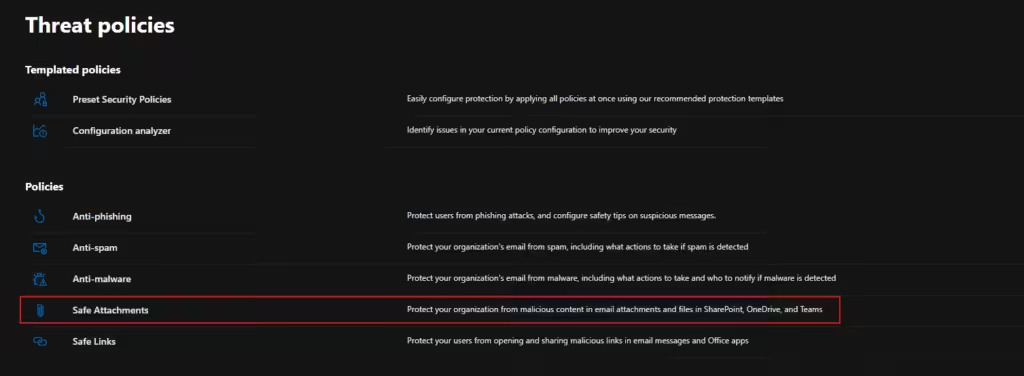
On the Microsoft Defender portal go to → Email & collaboration → Policies & rules → Threat policies → Anti-malware.
Here you want to confirm that your Default Anti-malware policy is set up correctly by left-clicking the Default policy → Edit protection settings.
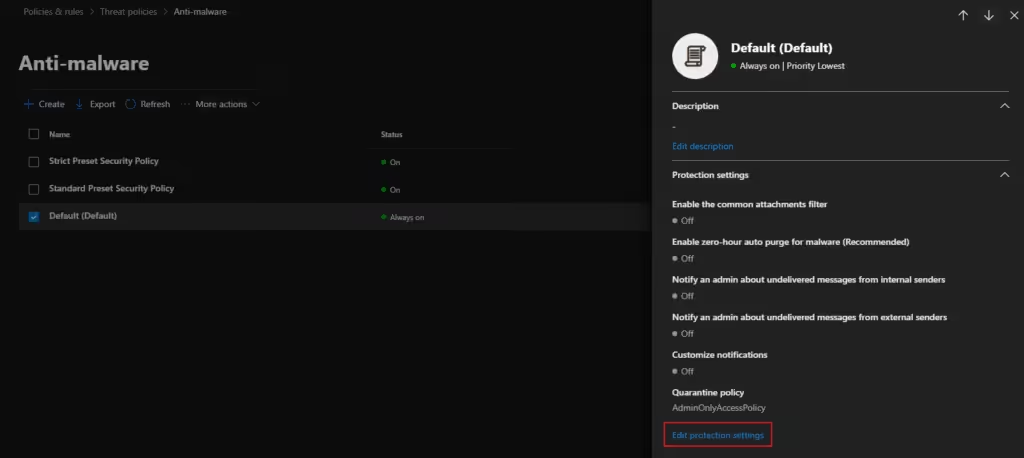
You can then select:
- Enable zero-hour auto purge for malware
- Enable the common attachments filter
You can then select either ‘Reject the message with a non-delivery receipt’ or ‘Quarantine the message’.
Reject the message with a non-delivery receipt – Blocks emails entirely
Pros: Blocks emails entirely, strongest protection
Cons: Risk of false positive, Admin users can’t review rejected mail
Quarantine – Holds suspicious mail in a secure quarantine folder
Pros: Admin users can release legitimate mail, mail can be analysed, reduces risk of losing important mail
Cons: Quarantined mail consumes resources, and malicious mail exists on your system until deleted
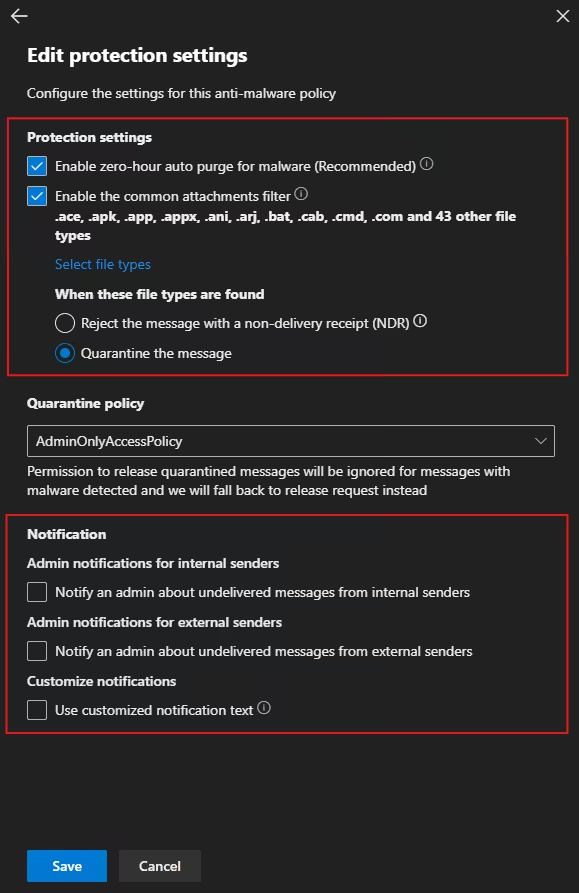
You can also set notifications so that your dedicated admin is notified of any undelivered messages. This is useful if you choose to reject potentially malicious mail.
Make sure you set the Quarantine policy to ‘AdminOnlyAccessPolicy’ or another policy you have set up specifically for users who have been granted permission to release quarantined emails.
Note: You can set up a quarantine policy by going to Email & collaboration → Policies & rules → Threat policies → Quarantines Policies.
3) Activate Safe Attachments
Requires Microsoft Defender for Office 365 Plan 1 (included in Business Premium or as an add-on to Business Standard).
Safe Attachments uses sandboxing to detonate suspicious files before they reach the user. This prevents zero-day malware and ransomware from exploiting email attachments. It’s a key layer recommended by NCSC and helps demonstrate proactive malware protection for Cyber Essentials Plus.
On the Microsoft Defender portal go to → Email & collaboration → Policies & rules → Threat policies → Safe Attachments.
From there go to Create, to create a new policy for Safe Attachments.

Name your policy appropriately i.e. “Default/Finance/HR Safe Attachments Policy”, you can also add a description if required.
You can then add your users and groups. It is recommended that you apply default policies universally across your environment. In this instance I selected ‘All Company’ which is the default group for everyone in the network.
Next you will need to choose your safe attachment settings – You have the option of Monitoring, Block, or Dynamic Delivery.
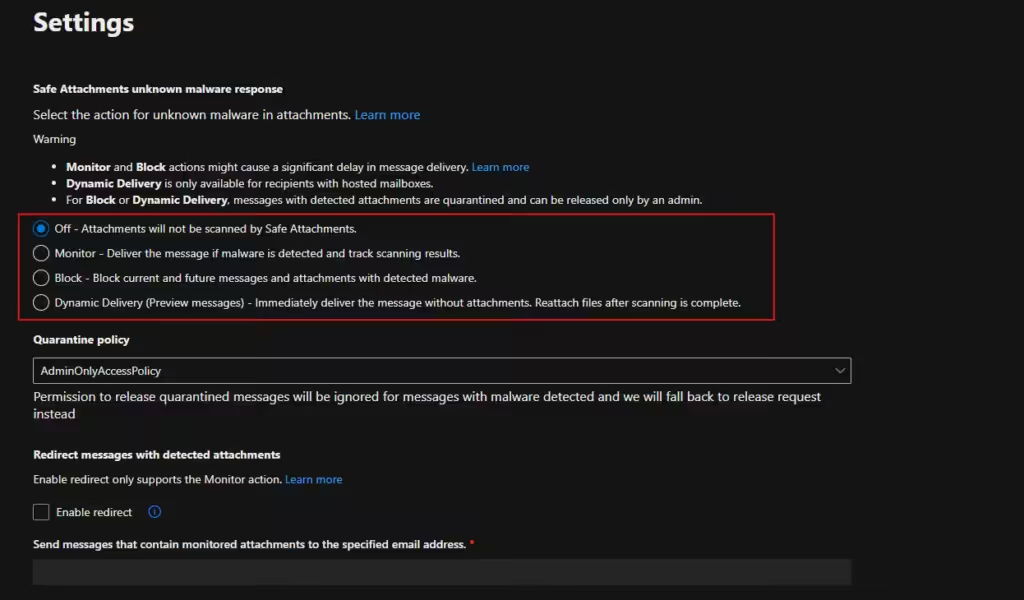
Off
- No scanning or protection is applied.
- Not recommended, as it leaves users exposed to malicious attachments.
Monitor
- Attachments are scanned and flagged but not blocked.
- Useful for testing or piloting Safe Attachments policies without disrupting mail flow.
- Recommended only during evaluation, not for production.
Block
- Malicious attachments are blocked outright.
- Strong security, but users may experience delays or missing attachments.
- Best for high-risk accounts (executives, finance, IT admins).
Dynamic Delivery (recommended)
- The email body is delivered immediately, while the attachment is scanned in the background.
- If safe, the file is released; if malicious, it is blocked.
- Provides the best balance of security and user experience, since users can read the message without waiting.
If Monitor setting is applied, you can enable redirect so that messages containing attachments are sent to a specific email for review (this should only be enabled for testing purposes).
Once you have reviewed the policy settings you can click submit and this will activate your policy.
4) Enable Safe Links
Requires Microsoft Defender for Office 365 Plan 1 (included in Business Premium or as an add-on to Business Standard).
Safe Links provides click-time URL scanning, blocking malicious websites even after delivery. Attackers often use phishing links that bypass initial checks, so this feature adds real-time protection and aligns with NCSC guidance on layered email security.
On the Microsoft Defender portal go to → Email & collaboration → Policies & rules → Threat policies → Safe Links.
Again, go to Create, to create a new policy for Safe Links and name your policy appropriately i.e. “Default/Finance/HR Safe Links Policy”, you can also add a description if required.
Just like the previous default policy add ‘All Company’ to the users. Now you can select your policy settings – The ones selected are all recommended.
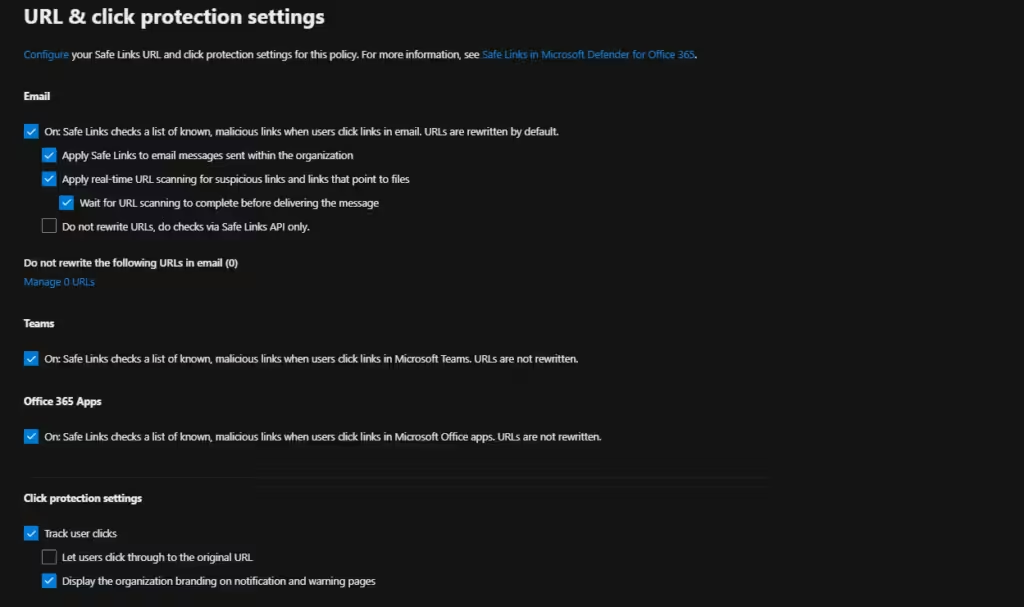
Optional Settings:
Do not rewrite URLs, do checks via Safe Links API only: Is generally not recommended unless you have a specific use case (e.g., third-party link tracking or branding conflicts).
Let users click through to the original URL: Recommended only if users are trained to recognise risks.
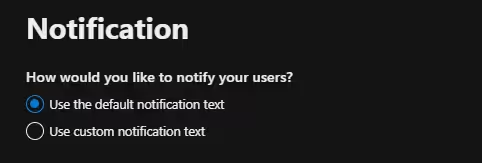
After that, pick how you would like to notify users, review and submit your policy to activate it.
5) Validate your new configuration
Send EICAR test files and check Microsoft Defender reports to confirm malware is blocked and policies are enforced. EICAR files are fake malicious files to test your anti-malware defences, these will also be used on your Cyber Essentials Plus assessment.
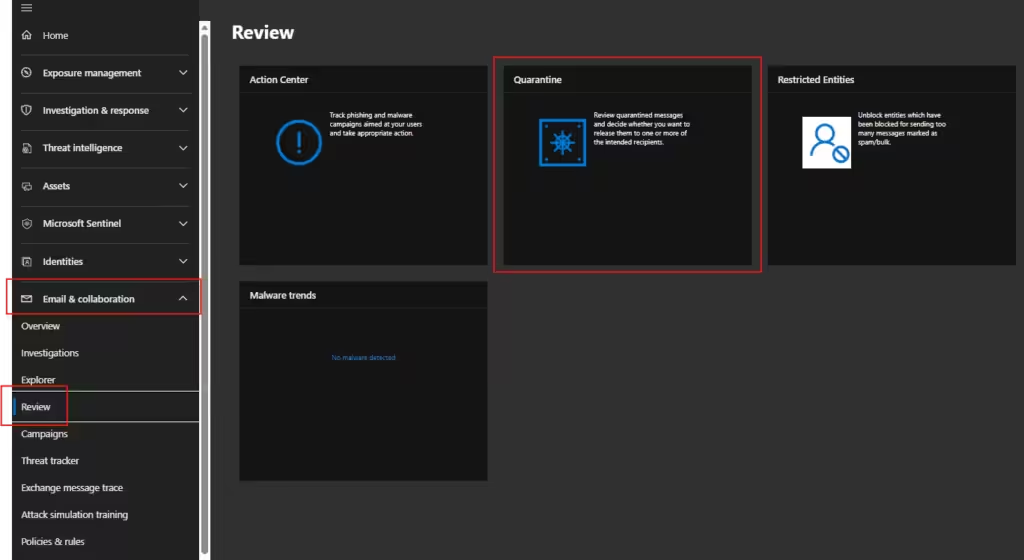
You can download the EICAR file from here and attempt to send it as an email attachment to confirm your policies are working. To view your email quarantine go to Microsoft Defender portal → Email & collaboration → Review → Quarantine.
Implementing anti-malware email filtering in Microsoft 365 is one of the most effective ways to reduce cyber risk for micro and small businesses. By enabling preset security policies and configuring your own policies, you can block malicious content before it reaches users. These steps align with NCSC best practice and help meet Cyber Essentials and Cyber Essentials Plus requirements, ensuring your users are better protected against email threats.
If you’re unsure about any of these steps, please contact us on 01748 905 002 or email info@evolvenorth.com, we’re happy to help.