

Passwords remain one of the most common causes of security breaches. Despite new alternatives, they are still widely used across corporate systems and cloud services. Unfortunately, outdated password policies, such as enforcing complexity rules and frequent changes, often frustrate users and lead to insecure behaviours like writing passwords down or reusing them across accounts.
This guide explains how to create modern, user-friendly password policies that align with NCSC guidance, Cyber Essentials, and Cyber Essentials Plus requirements. We’ll cover practical steps to improve security without making life harder for your users.
Why Traditional Password Policies Fail
Older password policies focused on complexity (uppercase, numbers, symbols) and frequent expiry. Research and NCSC guidance show these measures often backfire:
- Users adopt predictable patterns (e.g., “Password1!”).
- Frequent changes lead to weaker passwords or reuse.
- Complexity rules increase helpdesk calls and user frustration.
Modern best practice shifts the focus to length, uniqueness, and technical controls, supported by multi-factor authentication (MFA). Cyber Essentials discourages complexity rules and periodic resets unless compromise is suspected.
Core Principles of a Modern Password Policy
Prioritise Length Over Complexity
Longer passwords are harder to crack than short, complex ones, and easier for users to remember when using passphrases.
- Require minimum 12 characters (Cyber Essentials baseline).
- Alternatively, allow 8 characters if combined with a deny list blocking common passwords.
- Encourage passphrases (e.g., “applecarpetmonkey”) using NCSC’s Three Random Words method.
Ban Common and Compromised Passwords
Blocking known weak or breached passwords prevents attackers from exploiting predictable choices.
- Implement a deny list for weak or breached passwords.
- Integrate with services like haveibeenpwned.com for real-time checks.
No Mandatory Expiry
Frequent forced changes lead to weaker passwords and user frustration without improving security.
- Only require password changes when compromise is suspected.
- Routine expiry leads to predictable patterns and weaker security.
Support MFA Everywhere
MFA adds a critical layer of defence, making stolen passwords far less useful to attackers.
- Strong MFA methods (app-based or hardware keys) reduce reliance on passwords.
- MFA can block over 99% of account compromise attempts, including most phishing attacks
- MFA is becoming mandatory for all cloud services that support it under Cyber Essentials.
Implement Account Lockout and Rate Limiting
Limiting login attempts stops brute-force attacks before they succeed.
- Lock accounts after 10 failed attempts or throttle login attempts.
- Helps prevent brute-force attacks.
Educating Users
Informed users create stronger passwords and are less likely to fall for phishing or reuse credentials.
- Promote password managers for unique credentials.
- Train staff on creating strong passphrases and avoiding reuse.
- Weak passwords, reuse, and sharing often result from poor understanding of risk.
Steps to Implement Effective Password Policies
Microsoft 365 / Entra ID
- Use Azure AD Password Protection to block weak passwords.
- Minimum password length is automatically set to 8.
- Disable complexity requirements.
- Enable MFA for all accounts.
To update your password policy, first log in to your Microsoft Entra admin center.
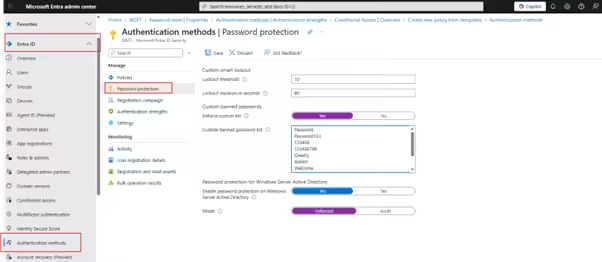
- On the left sidebar, navigate to Entra ID, Authentication methods, password protection. Here you can edit your account lockout threshold and create custom banned password list.
Note: For Cyber Essentials compliance, an 8-character password must be supplement with a common password deny list.
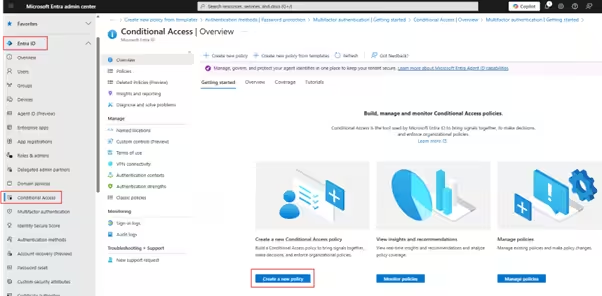
2. To set MFA for all users, navigate to Conditional Access on the left-hand sidebar, then click Create a new policy.
Note: To set conditional access controls you will need to disable security defaults.
3. From there, select the template for, Require multifactor authentication for all users, then click Review + Create.
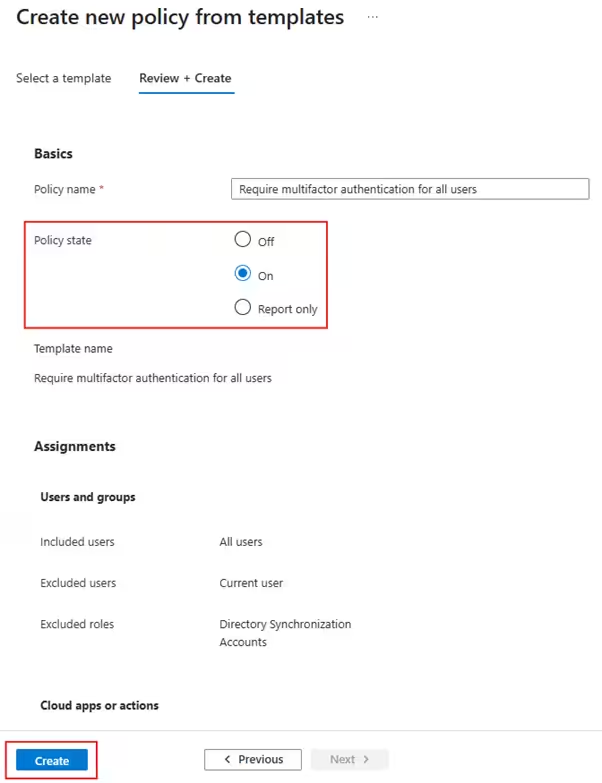
4. Set the Policy state to On and click Create. This template will enable MFA for all users and for all cloud apps. To view the policy, navigate to the Policies tab under Conditional Access.
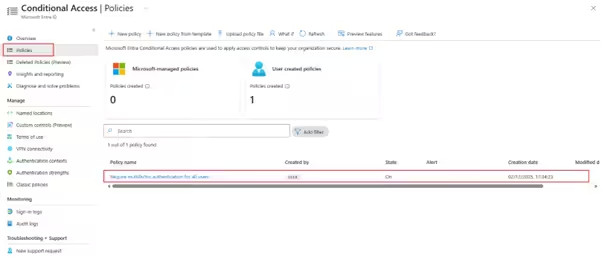
5. Click on the policy you created to make further adjustments if required.
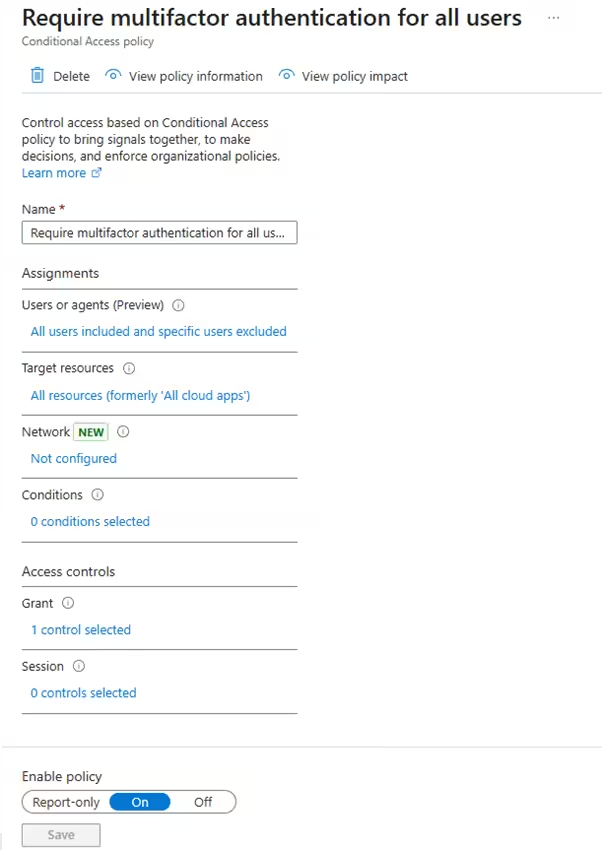
Pros: Cloud-native, integrates with Microsoft 365 and supports banned password list and MFA enforcement.
Cons: Requires premium licensing for advanced features and dependant on Microsoft ecosystem.
Windows Active Directory
Configure Fine-Grained Password Policies via Group Policy:
- Minimum length: 12 characters.
- Disable complexity rules.
- Enable lockout after 10 failed attempts.
Pros: Centralised control for all domain-joined devices and easier to apply consistent rules across your whole network.
Cons: Limited flexibility for remote/cloud users and requires on-prem/virtual infrastructure with admin expertise.
To update your password policy, first load up your Active Directory environment
- Go to Group Policy Management, find your Default Domain Policy, right-click and edit.
Note: Editing your Default Domain Policy will encompass all users joined to your domain.
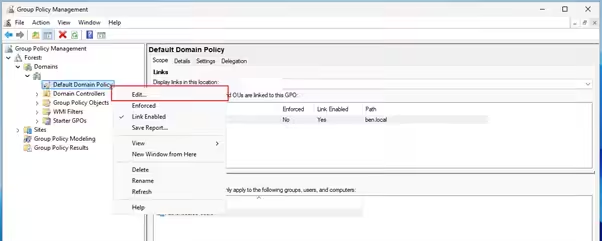
2. This will open a new window for the Group Policy Management Editor. Navigate to:
Computer Configuration → Windows Settings → Security Settings → Account Policies → Password Policy.
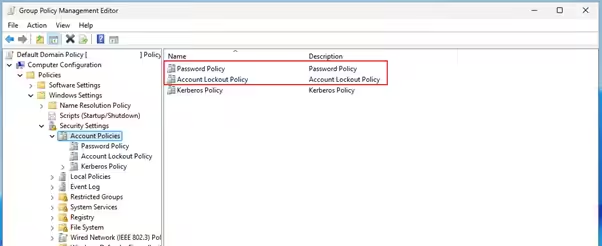
3. Double-click Password Policy to view the current configuration. These will be set to the default if previously unedited.
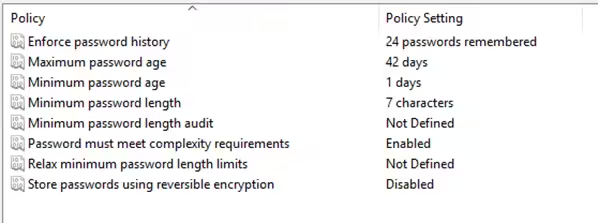
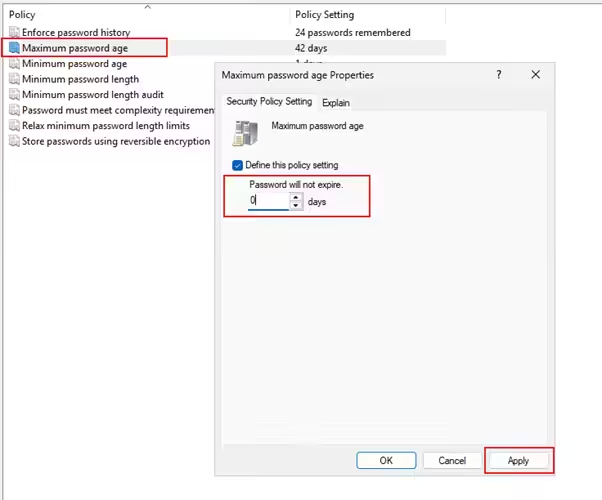
4. To change a setting, double-click, for example Maximum password age. This will open a pop-up to edit the setting. Based on guidance we set this to 0 – then hit apply.
Cloud Services (General)
Apply similar rules where supported:
- Minimum length.
- Deny list for common passwords.
- MFA enforcement.
For services without configurable password policies, rely on MFA and user education.
Modern password policies reduce risk and improve usability. By focusing on length, uniqueness, and technical controls, you meet NCSC and Cyber Essentials requirements while avoiding user frustration. Combine these measures with strong MFA and user education for maximum protection.
If you’re unsure about any of these steps, please contact us on 01748 905 002 or email info@evolvenorth.com, we’re happy to help.