

This guide provides step-by-step instructions for installing the Qualys Cloud Agent on Windows devices. The Qualys Cloud Agent is a lightweight application that continuously monitors your system for vulnerabilities, compliance issues, and security risks. By following this guide, you will ensure that your device is properly set up for the internal audit for Cyber Essentials Plus.
Background
As an accredited Cyber Essentials Plus Certification Body, we use Qualys to conduct vulnerability scanning as part of our assessment process. Qualys is an IASME-approved tool, ensuring our scans meet the required standards for identifying known security issues across systems in scope.
Unlike traditional vulnerability scanning, which relies on scheduled network scans, the Cloud Agent runs locally on your device and provides real-time visibility into security posture.
The Cloud Agent collects and transfers the information below via Port 443 to the Qualys Cloud Service (no other information will be gathered in our configuration of the Cloud Agent):
| Asset | Operating System / Vendor |
| Hostname and Fully Qualified Domain Name (FQDN) | |
| NetBIOS name | |
| IPv4/v6 Address(es) | |
| MAC Address(es) | |
| Connected From IPv4 Address (connected to the Qualys Platform) | |
| Last System Boot | |
| Time Zone | |
| Hardware | Manufacturer |
| Model | |
| Total Memory | |
| BIOS Description | |
| Disk Volume(s) (drive, size, free space) | |
| Processor(s) (manufacturer, model) | |
| Network Interface Card(s) (manufacturer model) | |
| Software | Services (name, description, status) |
| Installed Software / Version (via installer, known path, registry or environment variable) | |
| Patch Level of Operating System and Installed Software | |
| Open Ports (port, protocol, name, description) | |
| User | Last User Login |
| File location metadata may contain username in file path |
How to install the agent
Step 1:
Visit the link we have provided you for your cloud agent. On this page you will see the options for your Operating System, the command to run for installing the agent, and the download for you agent.
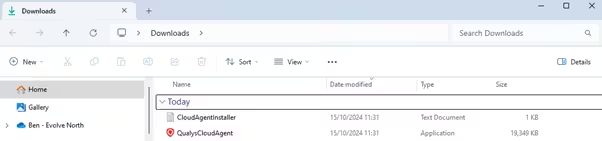
Please download the agent to you Downloads folder.
You should see the QualysCloudAgent application in your Downloads like the below.
Step 2:
Once you have downloaded the agent. Go to your search bar and type Command Prompt and open it.
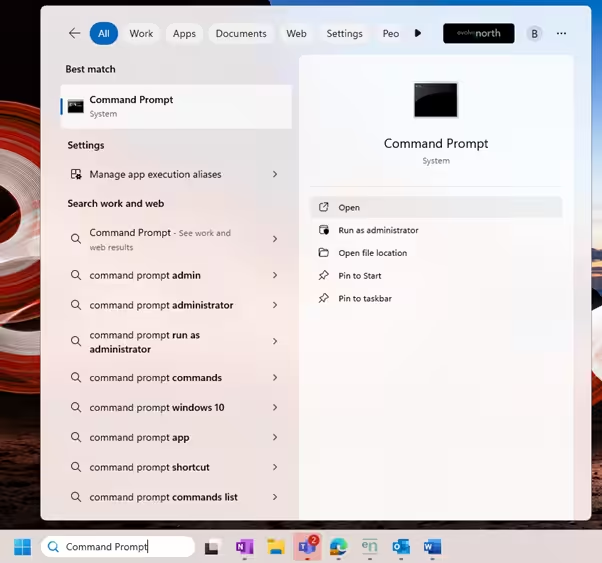
Once it has opened, copy (ctrl + c) the username. Make sure not to copy the “>”.

Once you have done this, you can close the Command Prompt.
Step 3:
Now reopen the Command Prompt as an administrator. To do so, go to the search bar and type Command Prompt > right click on it > Run as administrator.
You will then have a pop up to enter your administrator credentials.
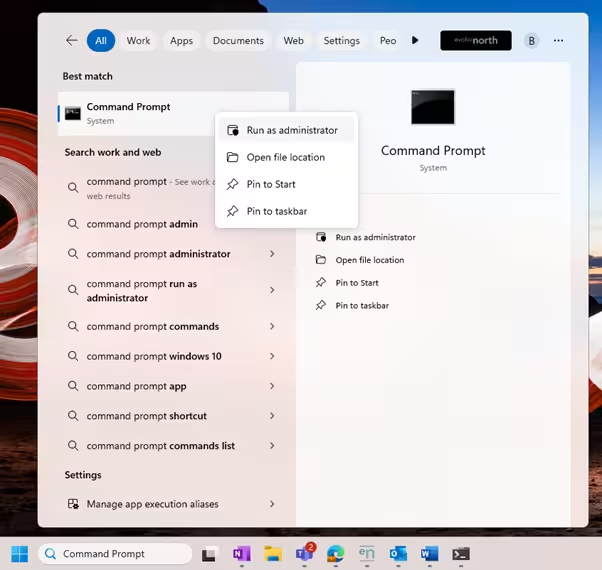
This will open the Command Prompt as an administrator. From there, type “cd” then spacebar, and then paste the username you have previously copied using (ctrl + v) and press enter.
For example: cd C:\Users\BenLoader

Step 4:
Now go back to the webpage from where you downloaded the agent and copy the command.
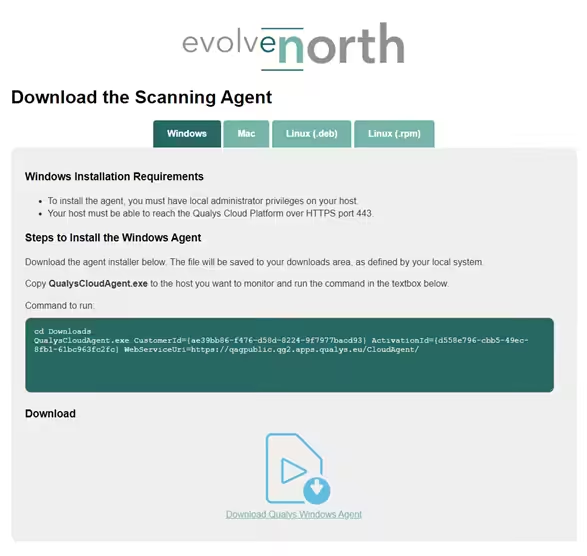 You can then paste (ctrl + v) this directly into the Command Prompt and press enter.
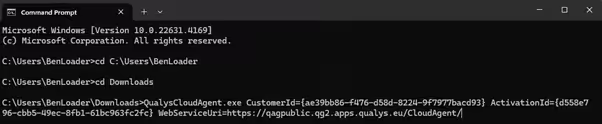
After pressing enter, it should look like something is happening, but you won’t get a pop up.
To see if the agent has installed correctly, you can go to your Task Manager and in the search bar type “Qualys Cloud Agent”.
If you encounter any problems with any of the steps above, please don’t hesitate to get in touch with someone from Evolve North.
We can schedule a screensharing session and guide you through the process, please contact us on 01748 905 002 or email info@evolvenorth.com.