

Separating administrative accounts from everyday user accounts is a fundamental security control recommended by the NCSC and required under Cyber Essentials. Administrator accounts hold elevated privileges within Microsoft 365, giving them the ability to manage users, configure security settings, access mailboxes, and make changes that affect the entire organisation. Because of this, they are a prime target for attackers.
This guide explains why separating administrative accounts is essential, how this control reduces the likelihood and impact of a breach, and the steps required to correctly configure a dedicated Microsoft 365 administrator account. By following the process, organisations can strengthen their Microsoft 365 environment, demonstrate compliance with certifications like Cyber Essentials, and align with industry recognised best practice.
Why Separate Administrator Accounts
Administrator accounts in Microsoft 365 have elevated privileges that make them a high value target for attackers and compromising one can provide unrestricted access to your organisation’s data and security settings. The NCSC recommends applying the principle of least privilege, and Cyber Essentials requires the use of dedicated admin accounts to prevent routine activities like email or web browsing from exposing privileged credentials to common threats such as phishing or malware. By separating standard user and admin accounts, organisations reduce the attack surface and improve monitoring and auditing of administrative activity.
Prerequisites & Requirements
Access to the Microsoft 365 Admin Center with permissions to create and modify user accounts.
Step-by-Step Instructions
1. Sign in to the Microsoft 365 Admin Center
- Go to https://admin.microsoft.com
- Sign in to your admin privileged account or an account that already has permission to create new users (e.g., Global Administrator or Privileged Role Administrator).
2. Create the New Admin User Account
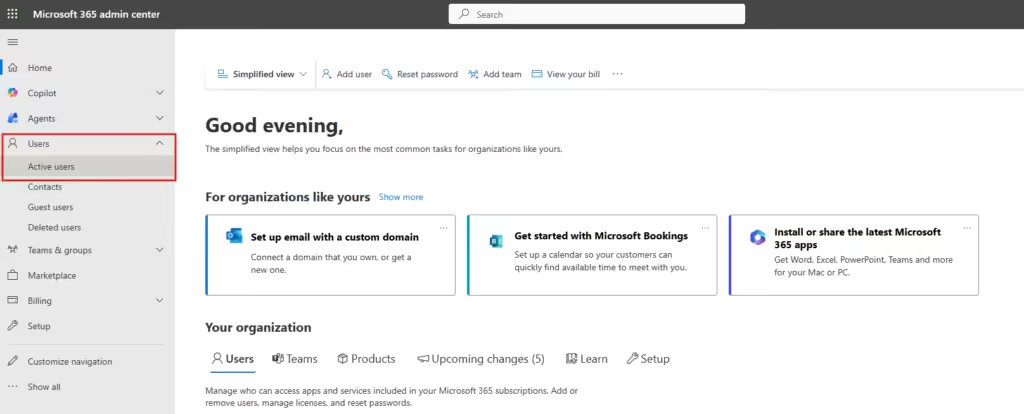
In the left‑hand menu, select Users → Active users.
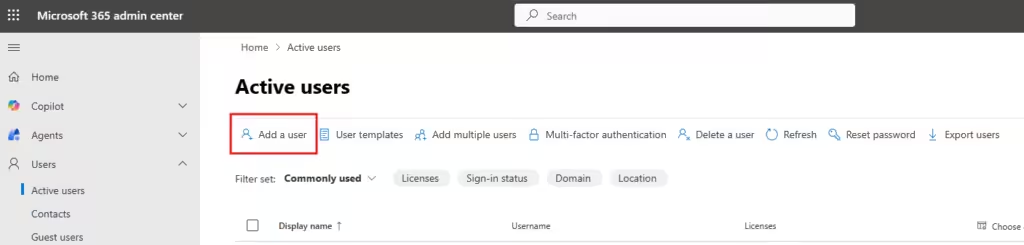
Click Add a user.
Enter the required details, such as:
- Name and Display name
- Username (e.g., firstname-admin@domain.com)
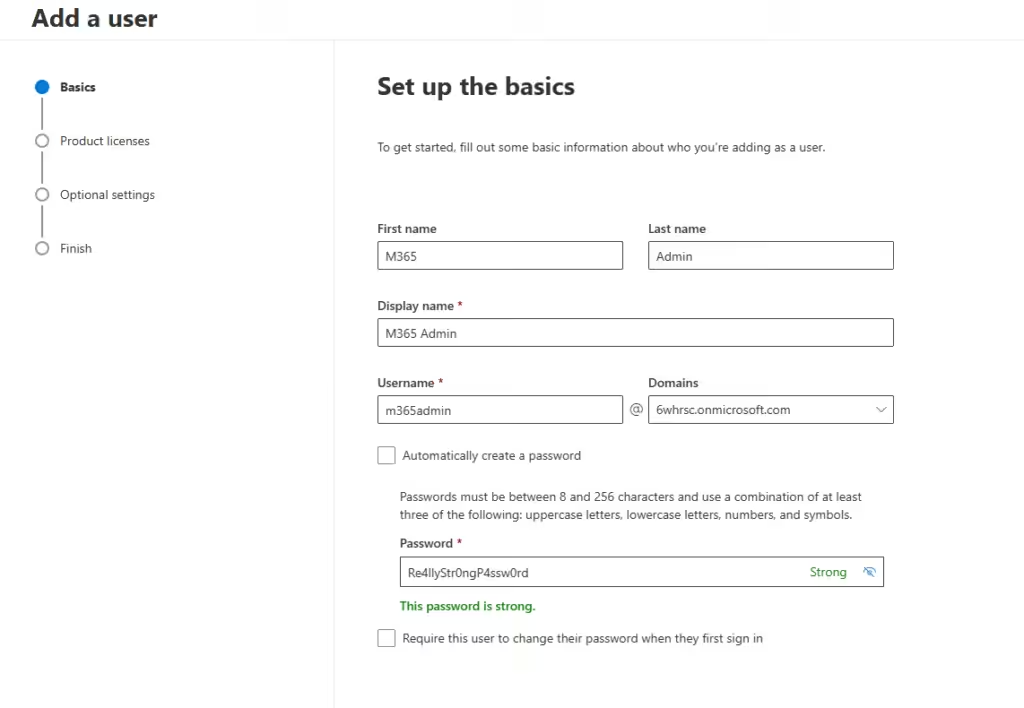
Under Password settings, choose whether the user must change their password on first sign‑in or untick “Automatically create a password” to set your own strong password.
Leave licensing unassigned. Admin-only accounts do not require a Microsoft 365 licence unless they need mailbox access (which they shouldn’t).
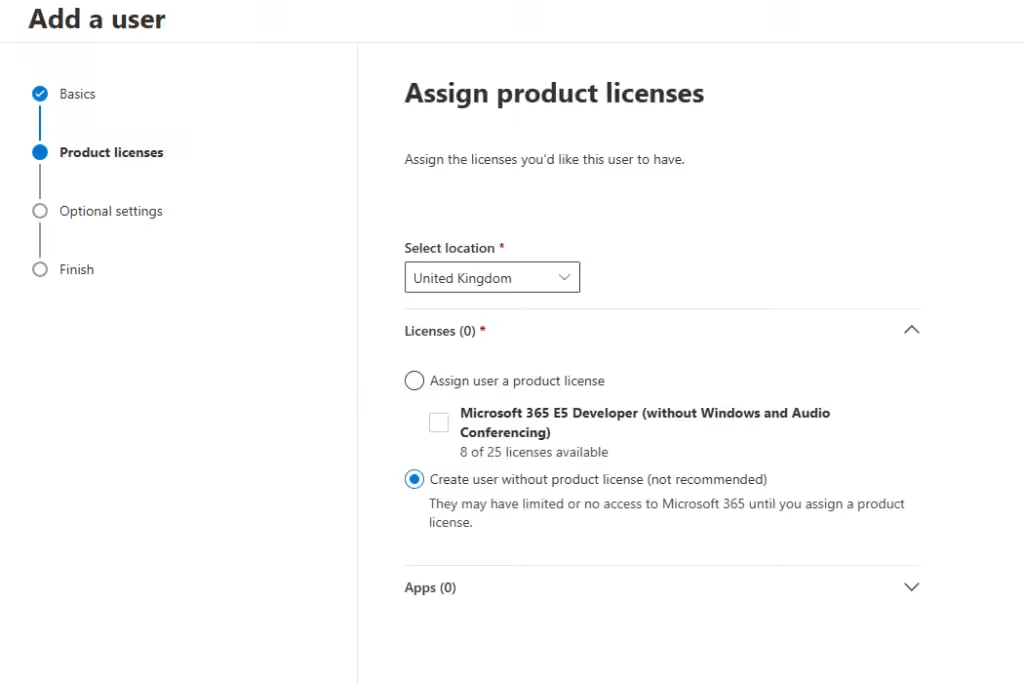
Click Next to continue.
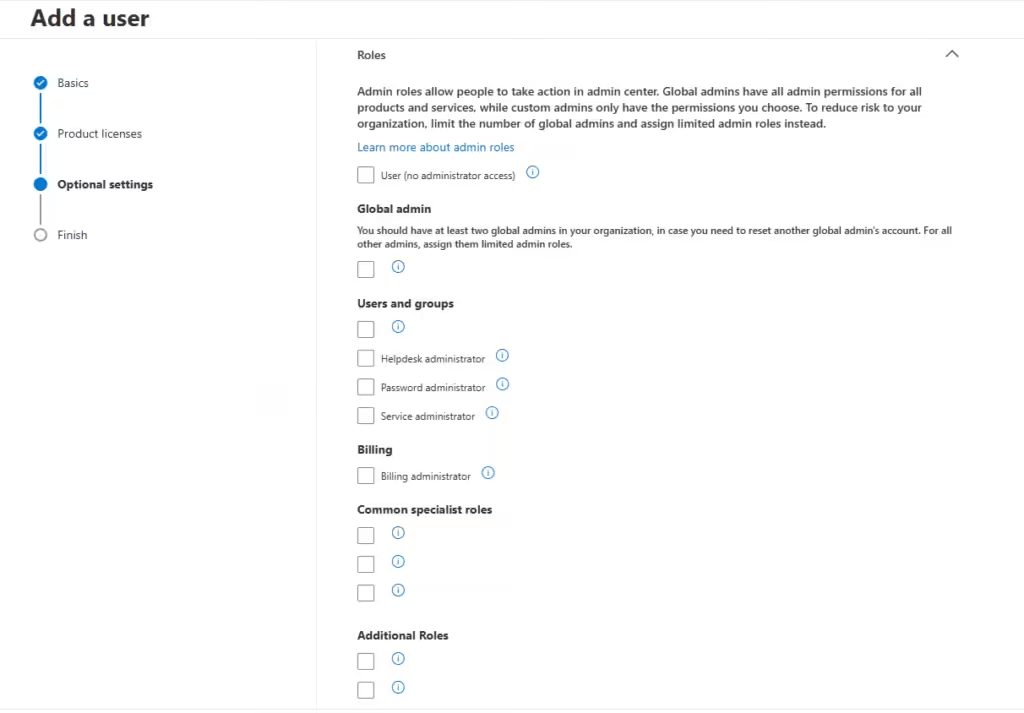
3. Assign Administrator Roles
When prompted to assign roles, select Administrator → Global Administrator, or choose a more restricted admin role to be in line with the principle of least‑privilege.
Click Next, review the settings, then select Finish adding.
If you refresh the Active Users dashboard you should now see the new admin account, you have just created with the correct admin permission you set.
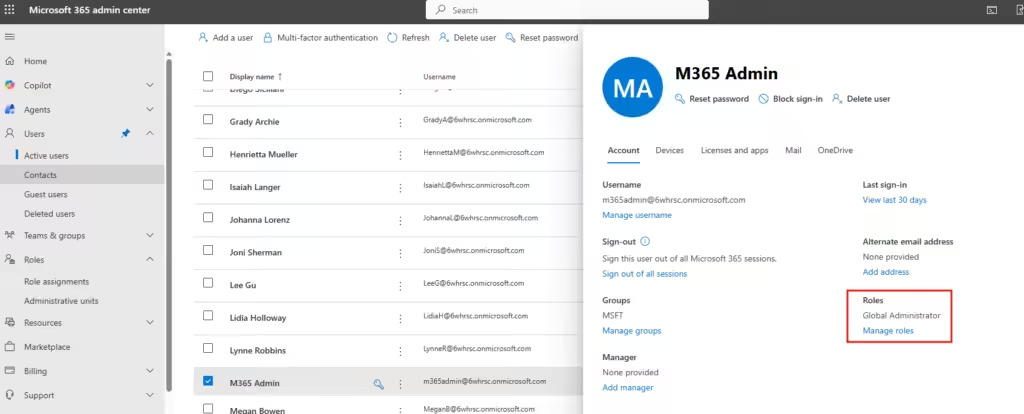
Now you will need to log out of your current account and sign into the account you have just created.
4. Remove Admin Rights from Your Standard User Account
- Return to Users → Active users.
- Select your normal day‑to‑day account.
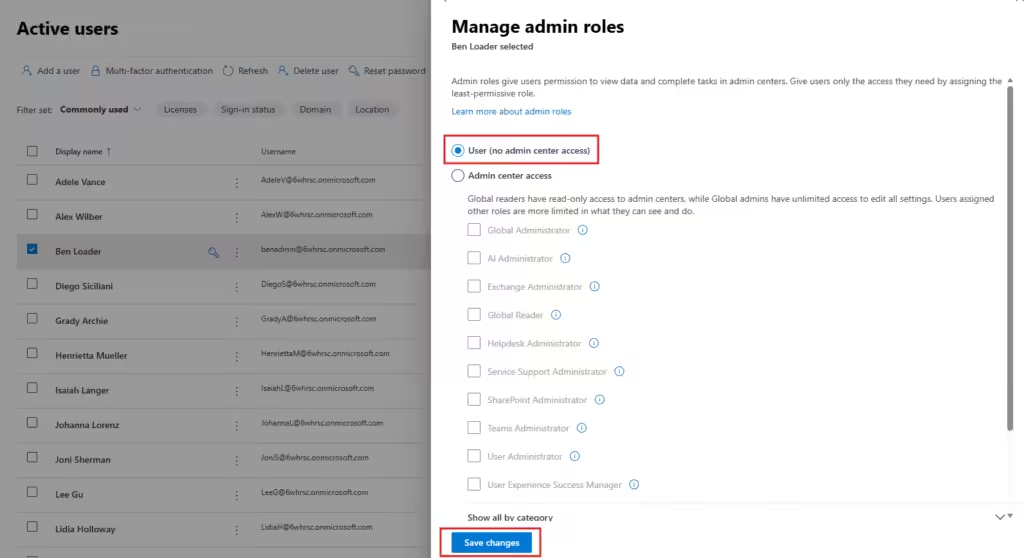
- Choose Manage roles.
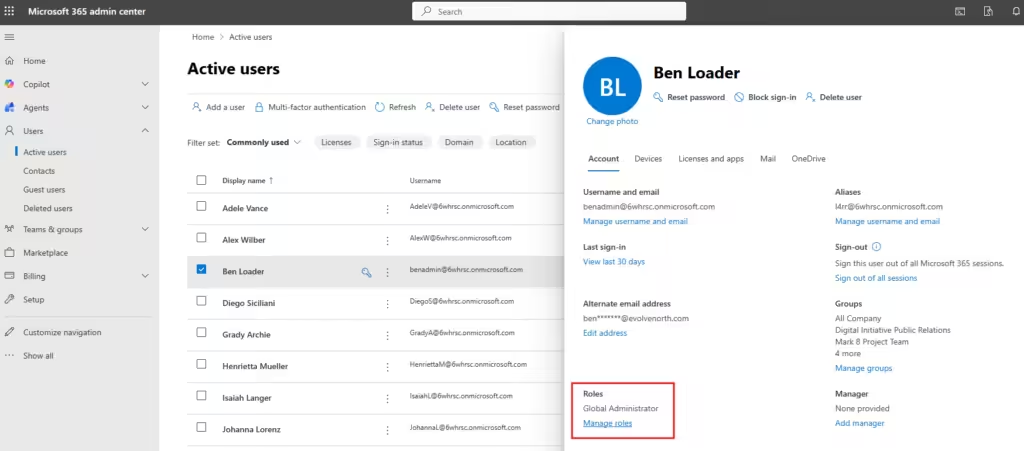
- Change the role to User (no admin privileges).
- Save the changes.
Now you have successfully separated your Microsoft 365 day-to-day account, create a standard and admin user.
Cyber Essentials Considerations
Cyber Essentials requires all administrative tasks to be carried out from dedicated admin accounts, not from day‑to‑day user accounts. Admin accounts must not be used for email or web browsing, and must be clearly identifiable during assessment.
Creating a separate Microsoft 365 admin account reduces risk and protects privileged access. By limiting admin use to administrative tasks, and removing elevated rights from everyday accounts, your organisation can strengthen security and simplify compliance.
If you’re unsure about any of these steps, please contact us on 01748 905 002 or email info@evolvenorth.com, we’re happy to help.